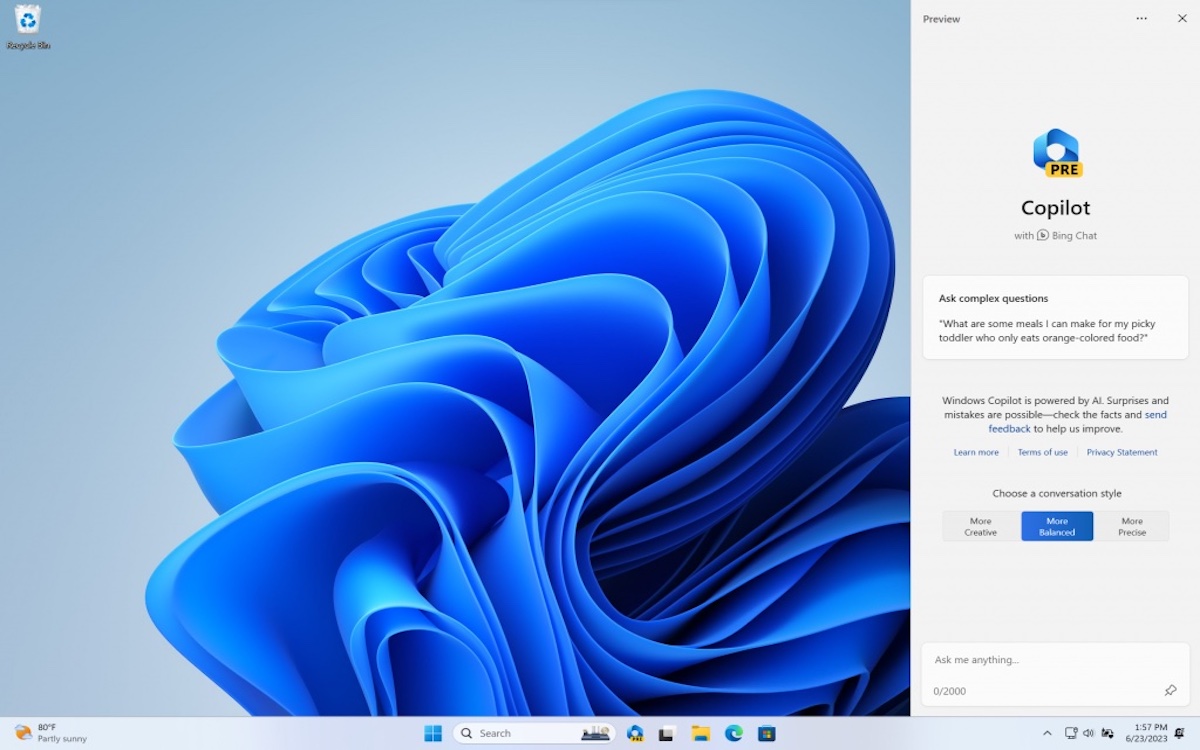
If you’ve been eagerly waiting to experience the future of AI assistance on your Windows 11 PC, the time has come. Microsoft’s artificial intelligence, Copilot, recently made its debut in the Windows 11 Preview channel. In this blog post, we’ll guide you through the steps to activate Copilot and explore its promising features.
Copilot: The AI Companion
Copilot has been a familiar name among Microsoft enthusiasts, as it’s been assisting users within the Edge browser since the beginning of the year. This AI companion supports users in various activities and promptly responds to their queries. But what’s exciting is that Microsoft plans to extend Copilot’s capabilities beyond the browser, integrating it into various solutions like Word, Excel, and PowerPoint, aiming to revolutionize how we use the entire Microsoft Office suite.
Activating Copilot on Your Windows 11 PC
To get started with Copilot, you’ll need to follow a few simple steps to access the Windows 11 Preview channel:
- Join the Windows Insider Program:
- Open the Windows 11 Settings.
- Navigate to the Windows Update section.
- Enroll in the Preview Channel:
- Click on the Windows Insider Program.
- Select « Get started. »
- If you haven’t already, sign in with your Microsoft account.
- Choose the Preview channel and click « Confirm. »
- Restart Your PC.
Now, you’re part of the Preview channel, giving you access to advanced features while maintaining the stability of your operating system. To ensure everything works seamlessly, check that your Windows build is 23493. If not, update your PC to this build.
Once you’ve confirmed your build, you’re ready to install Copilot. Here’s how you can do it:
- Download ViveTool:
- Prepare the Installation:
- Unzip the downloaded archive to the C:\ViveTool folder.
- Run as Administrator:
- In the Start menu, search for « Terminal. »
- Right-click on the Terminal application and choose « Run as administrator. »
- Enable Copilot:
- Copy and paste the following lines, one at a time, into the Terminal:
- C:\ViveTool\ViveTool /enable /id:44774629
- C:\ViveTool\ViveTool /enable /id:44850061
- C:\ViveTool\ViveTool /enable /id:44776738
- C:\ViveTool\ViveTool /enable /id:42105254
- C:\ViveTool\ViveTool /enable /id:41655236
- Copy and paste the following lines, one at a time, into the Terminal:
- Restart Your PC.
After your PC restarts, you should see Copilot in action, located in the corner of your screen, ready to assist you with various tasks and answer your questions.
With Copilot now available in the Windows 11 Preview channel, you have the opportunity to get a firsthand look at the future of AI assistance on your PC. As Microsoft continues to expand Copilot’s capabilities, we can expect exciting enhancements in our daily computing experiences.
Read more about Copilot in the official blog post: https://blogs.microsoft.com/blog/2023/09/21/announcing-microsoft-copilot-your-everyday-ai-companion/
Laisser un commentaire
Vous devez vous connecter pour publier un commentaire.